
Whole folders at once
Every video’s subtitles are found and matched to it, by name, by episode number or from a Subs folder, and each video gets only the translations it’s missing.

SubStantial for Mac
SubStantial finds the subtitles for every video in your folders, translates them with the language model you choose, and saves each translation next to its video, named so media players find it.

Free · macOS 14 or later · Apple silicon and Intel · SRT, VTT, ASS and SSA
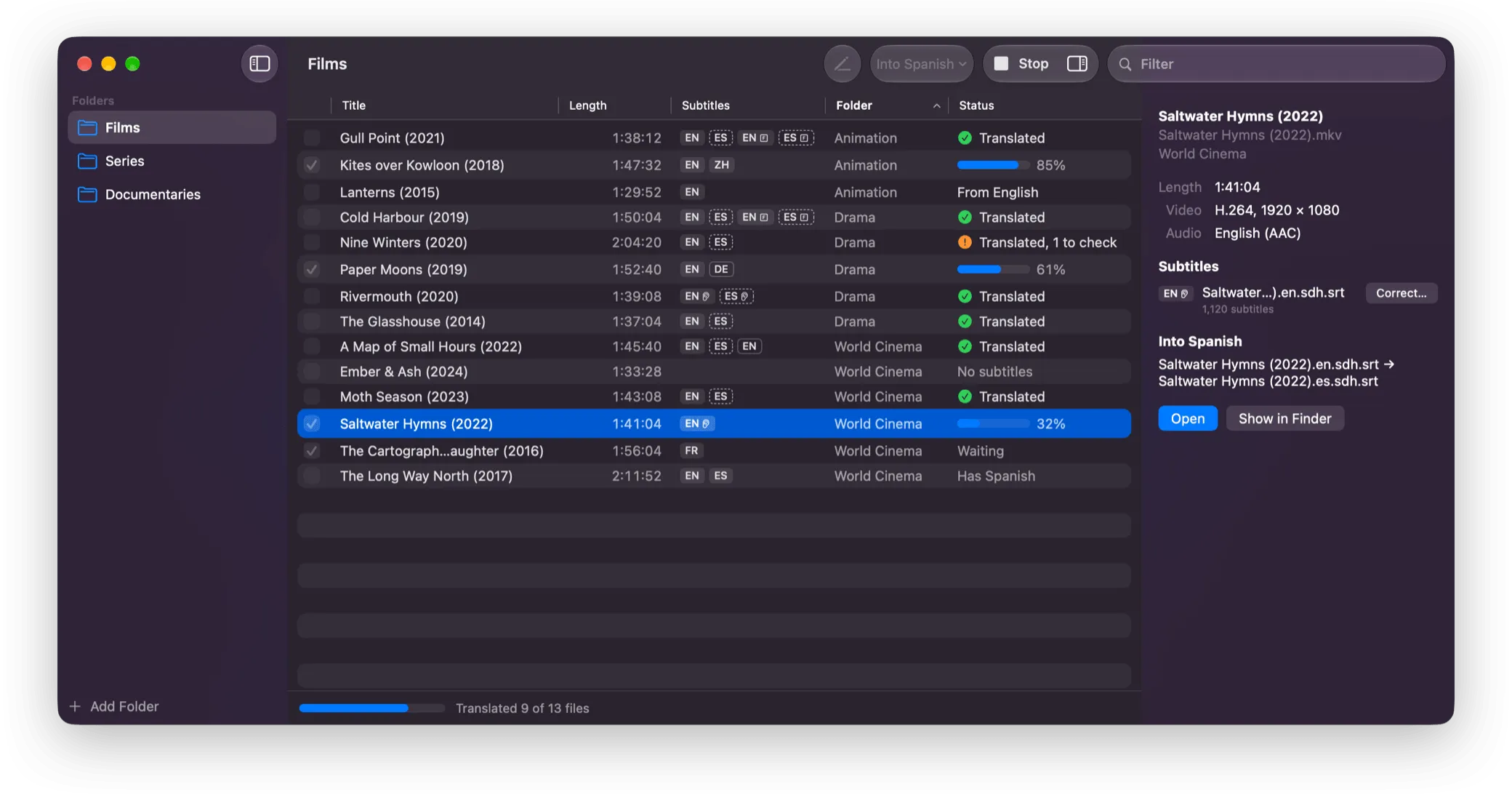
Add the folders your films and shows are in. SubStantial works out what each video is missing, and fills the gaps.
Drop them on the window. Every video is listed with the languages of its subtitles, whether they’re next to it, in a Subs folder or inside the video.
Videos without subtitles in it are checked for you. Each is translated from its best subtitles, English first, with forced subtitles translated separately.
Each translation is saved next to its video. Open the video to watch it with the original alongside, and fix any line.
Subtitles come in every format, encoding and naming style, next to videos and inside them. SubStantial handles the awkward parts.
Every video’s subtitles are found and matched to it, by name, by episode number or from a Subs folder, and each video gets only the translations it’s missing.
For a video without subtitles, Whisper writes down what’s said, on your Mac. Give it the names people say, and it spells them right.
The subtitle tracks inside MKV and MP4 files are listed with the files next to them, and translated the same way. Nothing is ever written into a video.
Your language model fixes typos, grammar and misheard words. Each change is highlighted, with what it said before, for you to keep or undo.
Subtitle files are renamed after their videos and moved next to them, the way Plex, Jellyfin, Kodi and Infuse look for them. You see every rename first.
Unicode, and the older encodings for European, Cyrillic, Greek, Turkish, Hebrew, Arabic, Thai, Japanese, Chinese and Korean text, are detected automatically. Italics, positions and styles are kept.
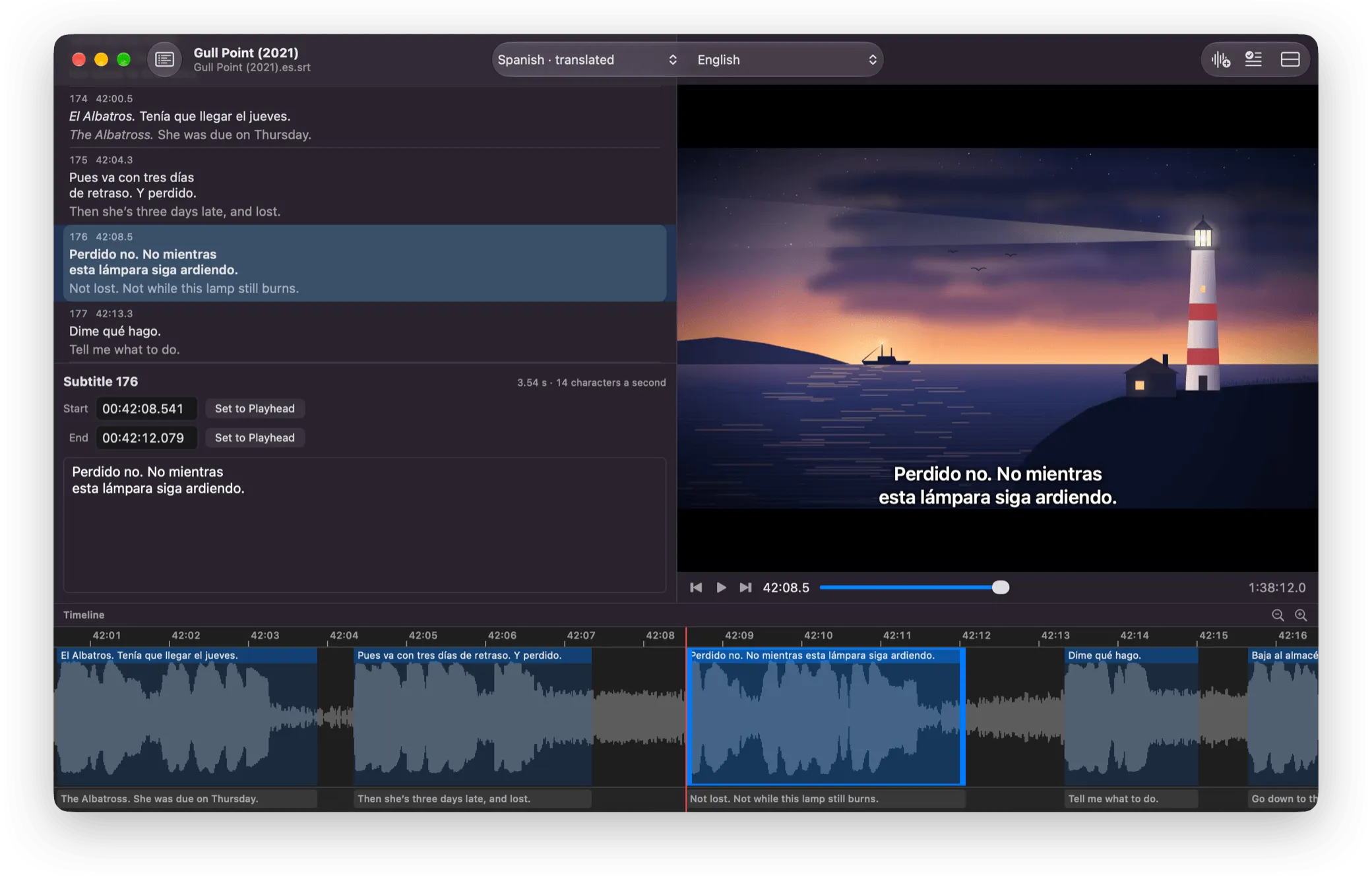
Each video opens in its own window: the translation over the picture, the original alongside, and every subtitle on a timeline of the sound. Edit a line, drag it to retime it, and undo anything.
Translate with a provider’s model, or with one SubStantial runs on your Mac. Either way, only the text of each subtitle is sent, never its times, so nothing can slip out of sync.
OpenRouter and OpenAI offer the strongest models, through your own account, with your API key kept in your keychain. Ollama and LM Studio run models on your Mac or network, and any OpenAI-compatible service works too.
Download Google’s open Gemma 4 model, and translate with it on your Mac. Your subtitles never leave it, and there’s nothing to pay.
On an M4 Pro, either translates an hour of dialogue in about five minutes.
Your subtitles go only where you choose. SubStantial collects no data. Subtitle text goes only to the provider you pick, and you’re asked first. With a model on your Mac, and when making subtitles from speech, nothing leaves it.
Privacy policy
Free on the Mac App Store, for macOS 14 or later on Apple silicon and Intel Macs. Providers such as OpenRouter and OpenAI charge for what you translate, through your own account.
Add the folder it’s in to SubStantial, choose the language and click Translate. The translation is saved next to the original, named so media players find it: Movie.en.srt gets a Movie.es.srt. A subtitle file without a video is translated the same way.
Yes, from the Mac App Store. Translating with a model on your Mac, or with Ollama or LM Studio, costs nothing. OpenRouter and OpenAI charge for what you translate, through your own account.
SubRip (.srt), WebVTT (.vtt) and SubStation Alpha (.ass, .ssa) files, in Unicode or any common older encoding, and the text subtitle tracks inside MKV, MP4 and other videos. Blu-ray and DVD subtitles are pictures of text, so they’re listed but can’t be translated.
Only the text of each subtitle goes to the language model, numbered: never the file, its times or your videos. With a provider, it goes to that provider, and SubStantial asks you first. With a model on your Mac, and when making subtitles from speech, nothing leaves your Mac.
Not without asking. Translations are saved as new files next to the originals. A video that already has subtitles in the language is skipped unless you choose to replace them, and you’re asked again, with the files named, before anything is replaced.
Yes: right-click the video and choose Create Subtitles…, or click Create Subtitles in its window. Whisper writes down what’s said, on your Mac, and the subtitles can then be proofread or translated.